The Zimbra messaging system of CD66 (Departmental Council of Pyrénées-Orientales) is the daily work tool for its agents. Accessing this online messaging from a browser requires neither installation nor particular technical skills, but a few details deserve attention to avoid common blockages.
Zimbra CD66 Webmail: What Happens on the Server Side When You Connect
Before discussing buttons and passwords, a rarely addressed technical point. When you type the webmail address into your browser, your request passes through an authentication portal. This portal verifies your credentials and opens a secure session on the department’s Zimbra server.
This mechanism often relies on a CAS or SSO (Single Sign-On) type system. In practice, this means that the same identifier can be used for multiple departmental services. If you change your password on a central portal, it also changes for the messaging system.
Several local authorities and public institutions have recently migrated to more robust authentication mechanisms, including OAuth2 or SSO portals. This type of migration concretely changes the way to connect to the webmail and configure mail clients on computers or mobile devices. If your usual access stops working overnight, it is probably related to an update of this authentication portal, not a password issue.
To better understand the specific connection steps for the department, you can consult your Zimbra CD66 messaging on Info Tech where the procedure is detailed step by step.
Accessing Zimbra CD66 Webmail from a Browser
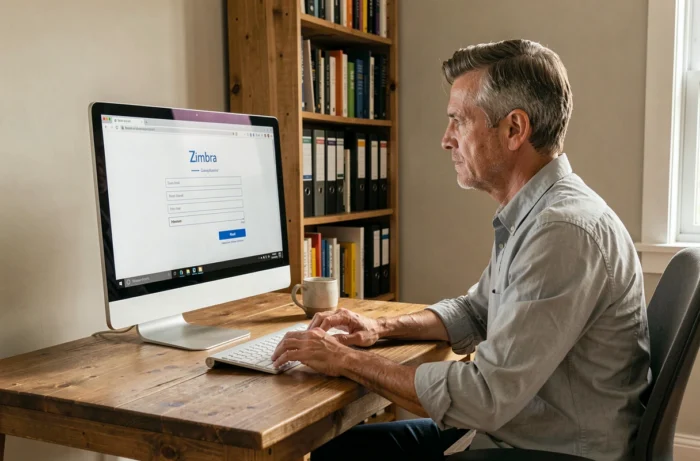
So, how do we do it? Accessing the webmail is done via a web address provided by the department’s IT service. You open your browser (Firefox, Chrome, Edge, Safari) and enter this URL in the address bar.
You arrive at a login page. Two fields appear: username and password. Your username is generally your full professional email address ([email protected] or a similar format).
Here are the points to check if the page does not display or if the connection fails:
- Check the exact URL of the messaging. A typo, an outdated bookmark, or an obsolete redirect can block access.
- Ensure that your browser is up to date. Zimbra uses modern web components, and an old browser can generate display or connection errors.
- Temporarily disable browser extensions (ad blockers, built-in VPNs) that may interfere with the authentication portal.
- If an SSL certificate error message appears, report it to the technical service. Do not bypass the warning, as an invalid certificate can indicate a real security issue.
Once connected, the Zimbra webmail interface opens. It is divided into several areas: the inbox in the center, a folder panel on the left, and a toolbar at the top to compose an email, search for a message, or access the calendar.
Configuring Zimbra CD66 on a Mail Client or Mobile
The webmail works well for quick consultations. But if you prefer to use Thunderbird, Outlook, or your phone’s mail app, you need to manually configure the connection settings.
You need three pieces of information provided by your IT service:
- The address of the incoming server (IMAP or POP), which allows you to retrieve your messages.
- The address of the outgoing server (SMTP), which manages the sending of your emails.
- The required encryption type (SSL/TLS) and the associated ports.
With an SSO or OAuth2 portal, configuring on a mail client may require an additional step. Some recent clients support OAuth2 natively (Thunderbird since its recent versions, Outlook for Microsoft 365). Others require the generation of a specific application password, distinct from your usual password.

On mobile (Android or iOS), the built-in mail app often offers automatic configuration if you enter your full address. If automatic detection fails, switch to manual configuration with the IMAP/SMTP settings provided by the department.
Zimbra Messaging Security: A Vigilance to Maintain
One aspect that standard user guides neglect: the security of the Zimbra server itself. A recent critical vulnerability (CVE-2026-73570) affecting the SNMP module of Zimbra allows the execution of arbitrary commands on the server, with a direct risk of compromising all hosted mailboxes.
The recommended fix is to update to Zimbra 10.1.20 or disable the SNMP module. From the user’s side, you cannot apply this fix yourself, but you can adopt concrete reflexes.
Change your password regularly, especially if your IT service reports maintenance or a security incident. Enable two-factor authentication if it is offered. And immediately report any suspicious email or unusual activity in your inbox (messages sent that you did not write, unknown folders).
In case of suspected compromise, GDPR obligations require notification to the supervisory authority within 72 hours. Your DPO (Data Protection Officer) is your direct contact in this situation.
Useful Zimbra Functions for Department Agents
Beyond simply reading emails, Zimbra integrates several modules that CD66 agents can use daily. The shared calendar allows planning meetings between departments without leaving the messaging system. Contacts synchronize with the departmental address book.
The Drive module, available on certain versions, offers a storage space to share files directly from the mail interface. This avoids sending large attachments and centralizes documents related to an exchange.
Advanced search remains one of the most underutilized tools. Instead of scrolling through hundreds of messages, use filters by sender, date, or attachment to find a specific email in seconds.
The Zimbra webmail of CD66 covers the majority of communication needs of departmental agents. The key to reliable access lies less in technology than in three simple habits: keeping the correct URL bookmarked, maintaining your browser up to date, and never ignoring a security warning.