
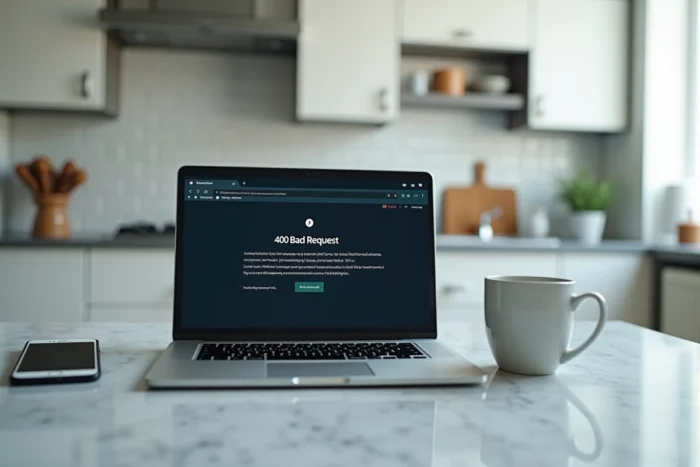
You launch e-habillement, enter your MinDefConnect credentials, and the page returns a 400 error. The browser displays “Bad Request,” with no further explanation. This code means that the server received your request but deemed it malformed. On the e-habillement platform of the Ministry of Armed Forces, the issue rarely stems from a general outage. It is almost always related to residual data in your browser, a profile mismatch, or an unsuitable network context.
e-habillement domain cookies: the targeted cleanup that changes everything
The classic reflex is to clear the entire browser cache. This method works, but it logs you out of all your other services (email, banking, other ministerial portals). There is a more precise approach.
Open your browser settings, then go to site cookie management. Look for the domain habillement.defense.gouv.fr and delete only the associated data. On Firefox, the path is through Settings, then Privacy, then Cookies and Site Data, then Manage Data. On Chrome, look in Settings, Privacy, then Cookies and other site data.
Why does this method work better? When an authentication cookie expires or becomes corrupted, the browser still sends the old token to the server. The server rejects it with a 400 code because the request contains contradictory information. By deleting only the cookies from the relevant domain, you force a clean authentication without losing your other sessions.
If you are looking for what to do in case of a 400 error on e-habillement, this targeted cleanup should be your first step before any other manipulation.

MinDefConnect and ANNUDEF synchronization: the invisible mismatch
You have cleared your cookies, restarted the browser, and the 400 error persists. The problem may lie upstream of the e-habillement platform itself.
Authentication goes through MinDefConnect, which relies on the ANNUDEF directory to verify your identity and rights. After a transfer, a change of assignment, or a password reset, the propagation of your profile between these two systems takes time. If you try to log in too quickly, MinDefConnect sends incomplete or outdated information to the e-habillement server, triggering the 400 code.
How to check if your profile is properly synchronized
Before attempting to log in to e-habillement again, test another service accessible via MinDefConnect. If this second service works normally, the problem is likely specific to e-habillement. If you also receive an error on the other service, the issue lies with your authentication profile.
In this case, wait at least thirty minutes after your last account modification before trying again. This delay allows ANNUDEF to propagate the changes to all connected services.
Intradef network, civilian network, and browser: isolating the source of the blockage
The 400 error does not always have the same origin depending on whether you are connecting from a unit workstation or from a personal computer. Both contexts present different pitfalls.
Connection from a unit workstation
Workstations connected to the Intradef network go through a local proxy that filters requests. This proxy can modify the headers of your HTTP request, which is enough to cause a rejection on the server side. If your office neighbor accesses e-habillement without issue from another workstation, the blockage likely comes from the local configuration of your machine.
Report the problem to your network administrator, specifying the error code and the exact time of the attempt. This information helps trace the logs in the proxy.
Connection from a civilian network
From a personal computer, proxy filtering does not exist, but other factors come into play. An outdated browser may send headers incompatible with the authentication server. Browser extensions (ad blockers, built-in VPNs, cookie managers) sometimes modify requests without your knowledge.
Here is a testing sequence to isolate the problem:
- Open a private browsing window, which temporarily disables extensions and ignores existing cookies.
- Try a different browser than the one you usually use (Firefox if you are on Chrome, or vice versa).
- If you are using a personal VPN, disable it for the duration of the test, as some VPNs add headers that trigger rejections.
- Test from another internet connection (mobile hotspot, for example) to rule out a blockage related to your local network.
If any of these steps eliminate the error, you have identified the responsible layer.
Persistent 400 error: distinguishing an account issue from a technical issue
When none of the previous manipulations resolve the issue, you need to determine whether the error affects your account specifically or if the platform is experiencing a broader malfunction.
Ask a colleague from the same unit to attempt a connection. If that person accesses e-habillement normally, the problem is indeed related to your profile or environment. If they receive the same error, the platform itself may be under maintenance or overloaded.
For reservists, a particular case frequently arises: the creation of the e-habillement account fails with a 400 error because the administrative attachment in ANNUDEF is not yet finalized. The MinDefConnect account exists, but access rights to e-habillement have not yet been granted. The solution then lies with the habillement office of your unit, which can verify your situation in the system.
Before contacting support, gather three elements that will expedite processing:
- A screenshot of the error with the URL visible in the address bar.
- The exact time and date of each connection attempt.
- The type of network used (Intradef, personal Wi-Fi, mobile sharing) and the browser with its version.
These details allow support to directly target the relevant layer of the system, instead of having you restart the entire diagnostic procedure from the beginning.